
You can connect Claude or ChatGPT to Spark and ask it questions about your projects, like "How many new leads did we get this week?" The assistant logs in as you, so it only sees what you can see in Spark.
Getting Started
-
Who can do this: Spark users who have been given Spark MCP access. The assistant has the same access you do in Spark.
-
What you'll need:
-
The Spark MCP turned on for your company account and for your user (see How do I enable the Spark MCP below)
-
A Claude or ChatGPT account on a plan that supports custom connectors (see Which Claude and ChatGPT plans support this? below)
-
How do I enable the Spark MCP?
Contact your Spark Customer Success Manager or email support@spark.re to turn on the Spark MCP. It needs to be turned on in two places:
-
For your company account
-
For each user who should have access to the Spark MCP
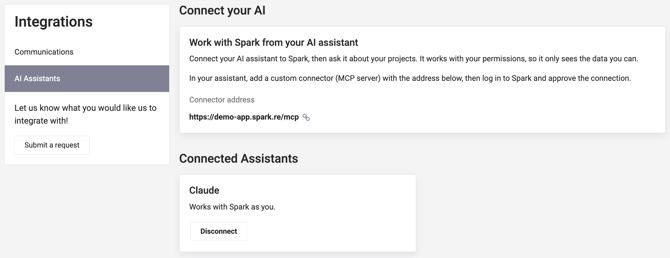
Once it's enabled for you, you'll see an AI Assistants page in Spark under Settings → Integrations. This page shows the connector address you'll need to connect your assistant:
https://app.spark.re/mcp
How do I keep sensitive custom fields private?
Data security is important! Before anyone adds any connectors, ensure your team has reviewed your custom fields for sensitive information.
Enable Sensitive Field for any custom field that holds private information, such as government ID numbers or passport numbers. Sensitive custom fields aren't shared with your AI assistant.
- Use your company-level settings for company-level custom fields, or your project-level settings for project-level custom fields.
- Go to the settings for the record type the custom field belongs to, then open the Custom Fields tab:
- Settings → Inventory
- Settings → Contracts
- Settings → Contacts
- Settings → Team Members
- Settings → Brokerages
- Click the micromenu (three dots) beside the custom field and choose Edit.
- Enable the Sensitive Field toggle.
- Click Save.
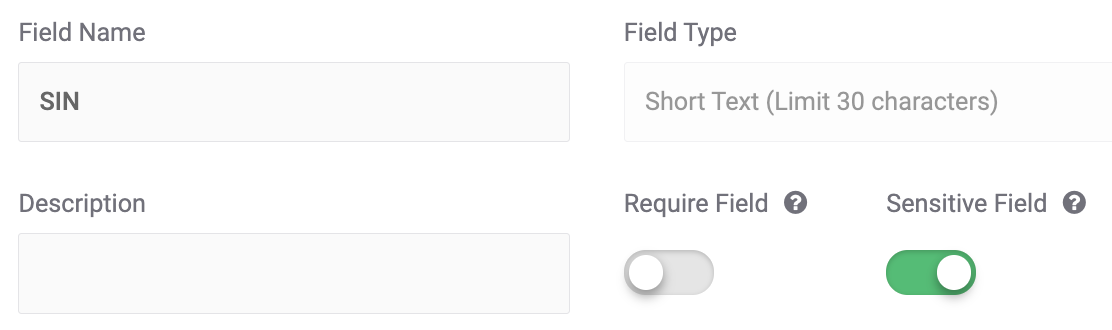
To learn more about custom fields and the Sensitive Field setting, see Creating and Managing Custom Fields.
How do I connect Claude to Spark?
-
In Spark, go to Settings → Integrations → AI Assistants and copy the connector address.
-
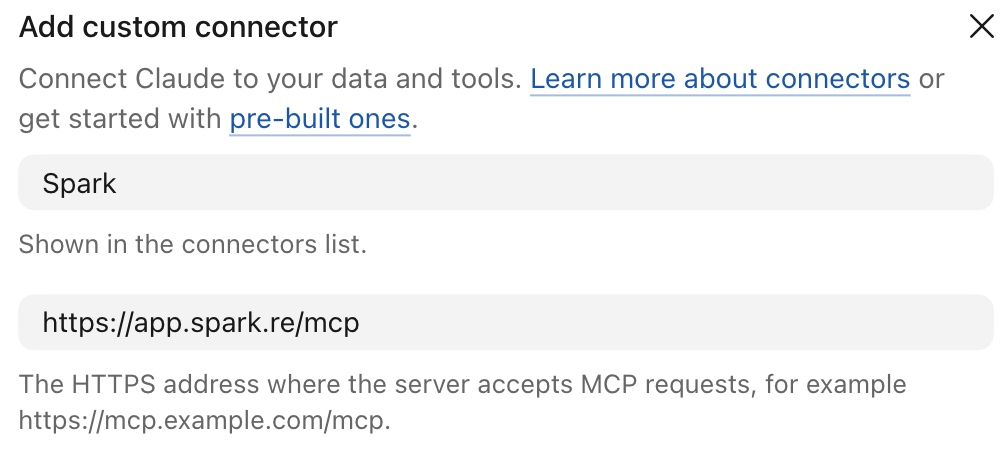
In Claude, go to Customize → Connectors and click Add custom connector.
-
Name it Spark, paste the connector address, and click Add.
-
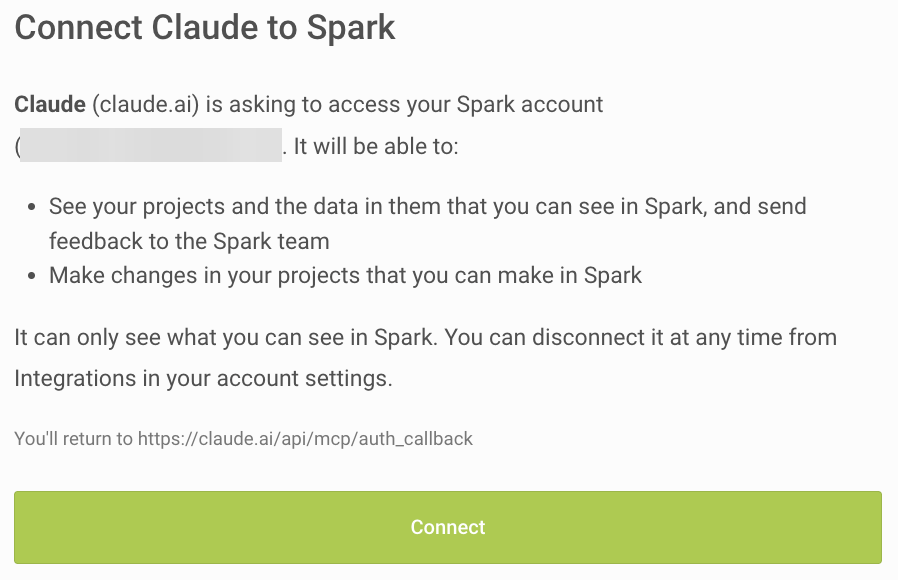
Click Connect. A Spark login page opens.
-
Log in to Spark and approve the connection.
- Start a chat and ask Claude something about your project, like "How many new leads did we get this week?"
Using Claude Team or Enterprise? A Claude Owner needs to add the Spark connector for your organization first, under Organization settings → Connectors. Once it's added, you'll find Spark under Customize → Connectors with a Custom label. Click Connect and follow steps 4 to 6 above.
How do I connect ChatGPT to Spark?
-
In Spark, go to Settings → Integrations → AI Assistants and copy the connector address.
-
In ChatGPT on the web, click Plugins in the left sidebar.
-
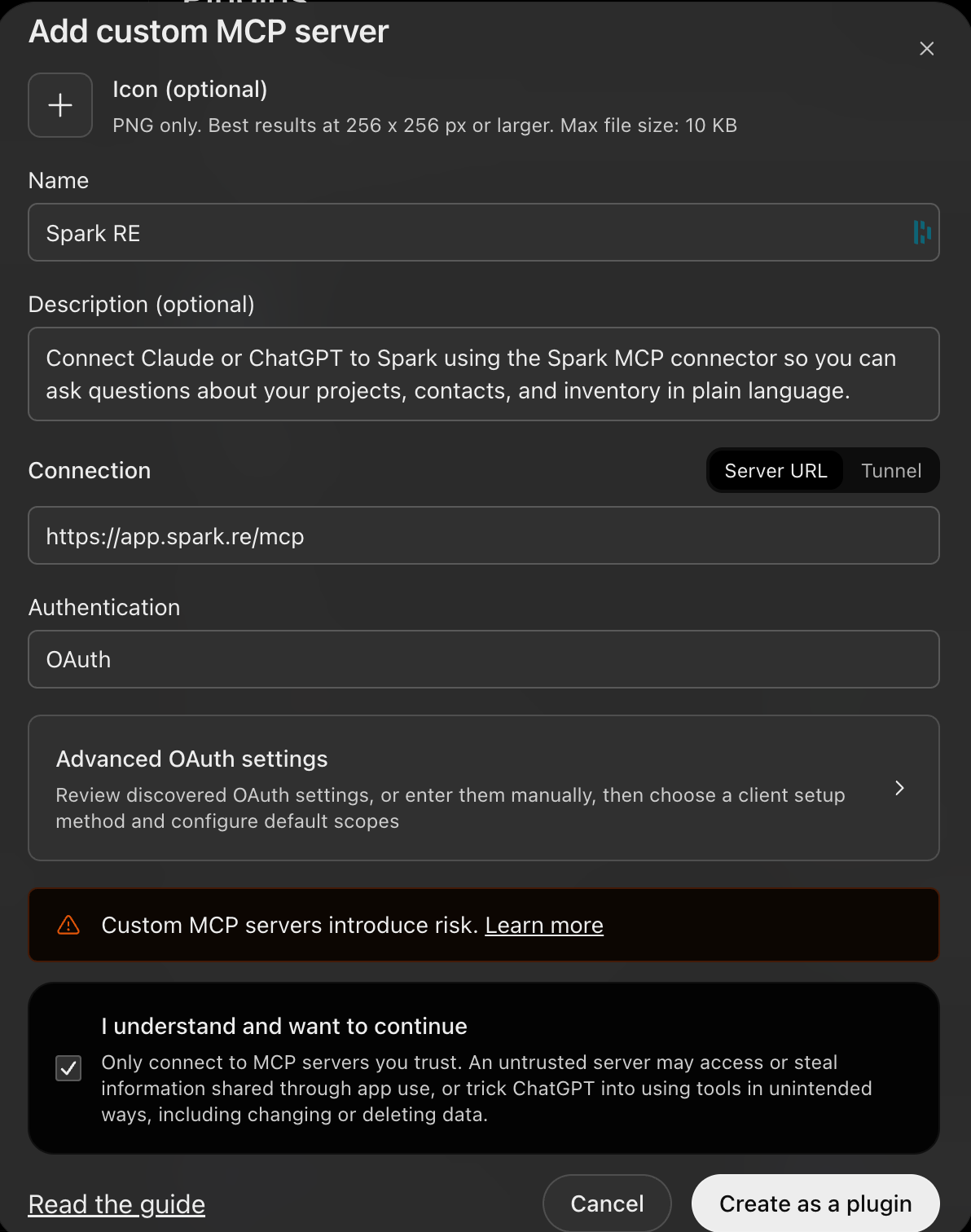
Click the + button and choose Add custom MCP server.
-
Name it Spark and paste the connector address in the Connection field.
-
Set authentication to OAuth, check I understand and want to continue, then click Create as a plugin.
-
Install the plugin. A Spark login page opens. Log in and approve the connection.
-
Start a new chat and ask ChatGPT something about your project.
Tip: If ChatGPT doesn't use Spark right away, type @ in the message box and select Spark to point it at your Spark data.
Which Claude and Chat GPT plans support this?
| Assistant | Plan | What to Expect |
| Claude | Free |
You can add one custom connector
|
| Claude | Pro or Max |
You can add the Spark connector yourself
|
| Claude | Team or Enterprise |
A Claude Owner adds the connector first, then each person connects their own Spark login
|
| Chat GPT | Free, Go, or Plus |
Custom MCP servers may not be available, and the Add custom MCP server option may not appear
|
| Chat GPT | Pro |
Read-only: ChatGPT can look up Spark data but can't add or change it
|
| ChatGPT | Business, Enterprise, or Edu |
Supported on the web. Your workspace admin may need to give you permission to add MCP servers
|
Custom connectors are set up on the web or desktop app. ChatGPT doesn't support adding them on mobile.
What about Copilot?
Access to Copilot must be configured by your IT person or Network administrator and depends on your Microsoft access and services; your IT person or Network Administrator should be able to confirm if you have the necessary licenses and credits for an MCP connected AI Assistant. If you do, please provide them the following:
- Server URL: https://app.spark.re/mcp
- Authentication: OAuth 2.0, dynamic discovery (no client ID or secret)
-
Where it goes: Copilot Studio, as a Model Context Protocol tool on an agent, then published to Teams and Microsoft 365
What can my assistant do in Spark?
| Area | What your assistant can do |
| Account |
View your Spark company account details
|
| Projects |
View the projects you have access to
|
| Contacts |
Search and view contacts, count contacts, and see contact activity and rating changes
|
| Interactions |
View and count interactions, and log new ones
|
| Notes |
View, add, and edit notes
|
| Inventory |
Search, view, and count inventory
|
| Contracts |
Search, view, and count contracts
|
| Events |
View events and RSVPs, and create new events
|
| Team Members |
View the team members on your account
|
| Feedback |
Send feedback about the Spark MCP directly to the Spark product team
|
To share feedback about the Spark MCP, just tell your assistant what you'd like to pass along, for example "Send feedback to Spark that I'd like to be able to search contracts by deposit date." Your assistant sends it straight to the Spark product team.
Your assistant can't delete anything in Spark. Both Claude and ChatGPT ask for your approval before adding or changing anything in Spark. Review each request before you approve it.
How do I disconnect an assistant?
In Spark, go to Settings → Integrations → AI Assistants and click Disconnect next to the assistant. It loses access to Spark right away.
You'll only see your own connections on this page. Disconnecting an assistant doesn't affect connections other team members have set up.
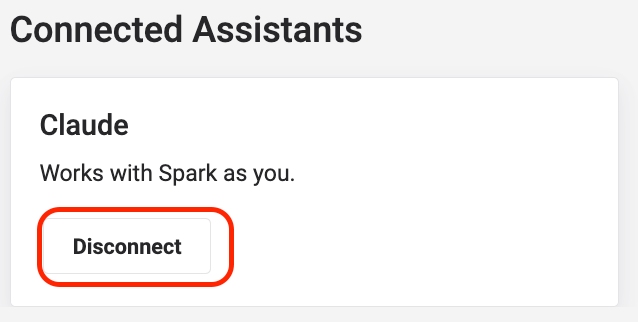
You can also remove the Spark connector from the assistant itself: in Claude, under Customize → Connectors, and in ChatGPT, from the Plugins page.
Questions?
If you have trouble connecting, contact your Spark Customer Success Manager or email support@spark.re. For questions about your Claude or ChatGPT account or plan, visit Claude support or the OpenAI Help Centre.