
Before you begin
- Your Spark account must have the Aircall integration connected
- The contact must have a phone number saved on their profile
Make a call from a contact profile
- Open the contact profile
- Click the contact’s phone number
- Select Call
- If you are calling from your computer, the Aircall dashboard or browser dialer will pop up
- If you are calling from a mobile device such as a phone or tablet, the Aircall app will open
- During or after your call, add any desired notes in the Notes section
- Click Save
Review a call in the Communications widget
- Open the contact profile.
- In the Communications widget, click the Calls tab.
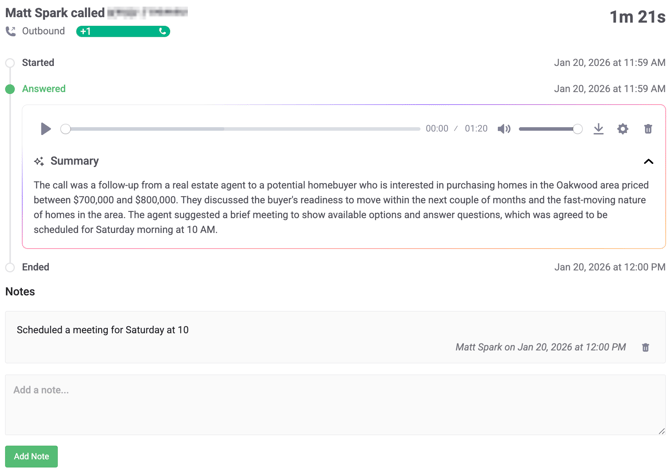
- Click a call record to view details.
You can review:
- Notes saved via Aircall during the call
- A call recording (if the call connected)
- An AI summary (if enabled)
- Notes added via Spark after the call
Note: If the call did not connect, a recording may or may not be available depending on your voicemail recording settings in Aircall.
How to add notes after a call
-
Click on the call record to open it
-
Add your note in the Add a note field
-
Click Add Note
Where else call activity appears
In addition to the Communications widget, Spark shows call activity – including call activities made as part of a Follow Up Schedule – in:
-
The Activity feed
-
The Interactions section
Related articles